
Find your way around the screen
What the menu on the left, the icons at the top and the main area are for.
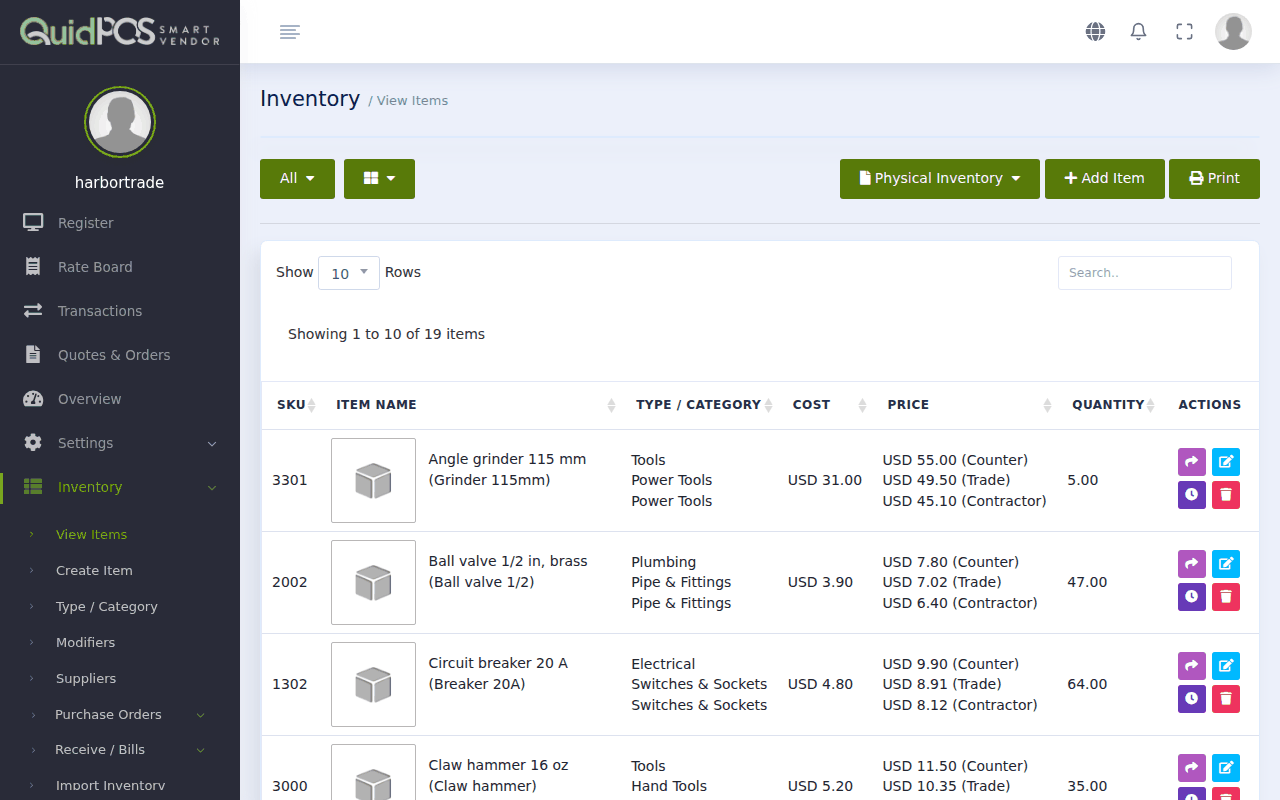
Every screen in Quid has the same three parts.
 123
123- The menu (dark strip on the left). This is how you move between parts of the program. Click a word to go there. A small arrow next to a word means more choices open underneath when you click it.
- The top bar. A few small icons, explained below.
- The work area. Whatever you chose in the menu shows here.
The menu, from top to bottom
| Menu | What it is for |
|---|---|
| Register | Selling. Start here every day. Make a sale |
| Rate Board | Live currency exchange rates. The Rate Board: live currency exchange rates |
| Transactions | Every sale you have made. Find a past sale |
| Quotes & Orders | Prices you have offered and orders waiting to be collected. Quotes and orders: follow a deal from offer to sale |
| Overview | Your business on one page. The Overview page: your business at a glance |
| Settings | Tax, currency, receipts, your business details. Tax, receipt and register options (Preferences) |
| Inventory | The things you sell, suppliers, purchase orders. Add an item to sell |
| Customers | Your customer list and what they owe. Add a customer |
| Reports | Sales, profit and stock reports. Which report answers which question? |
| Help | The setup page and this help site. |
| Hardware | Printers and scanners that work with Quid. Printers, scanners and cash drawers: what works with Quid |
| Team | Staff logins and what each may do. Give a staff member their own login |
| My Account | Your plan, payments and password. Your plan, add-ons and paying for Quid |
Good to know
You may not see every menu. The owner decides what each staff member can open. If something you need is missing, ask the owner to change your role. See Decide what each staff member may do (roles).
The icons at the top right
- Globe: change the language. See Change the language.
- Bell: messages from Quid, such as "your plan ends soon".
- Four corners: make Quid fill the whole screen. Press the Esc key to go back.
- Round picture: your own menu. From here you can change the colour theme (light or dark), swap to another staff member, lock the screen, or log out.
Make the menu smaller or bigger
Click the three small lines at the top left of the work area. The menu shrinks to icons only, which leaves more room for the register. Click again to bring the words back.
On a phone or small tablet
The menu is hidden to save space. Tap the three lines at the top left to open it, and tap outside it to close it.
NextWhat devices does Quid POS work on? →Did this answer your question? If not, email us and tell us what you were trying to do. We read every message.