
Create your account and log in
How to sign up, confirm your email address, and get back in next time.
Create a new account
- Open the sign-up page.
- Type a username. This is the name you will log in with. Choose something short that you will remember, with no spaces, for example harbortrade.
- Type your email address. Use one you can open right now, because Quid will send a message to it.
- Type a password twice. Pick one that is hard to guess and write it down somewhere safe.
- If someone gave you a referral or promo code, type it in. If not, leave that box empty.
- Tick the "I am not a robot" box, tick I agree to the Terms of Service, then click Sign Up.
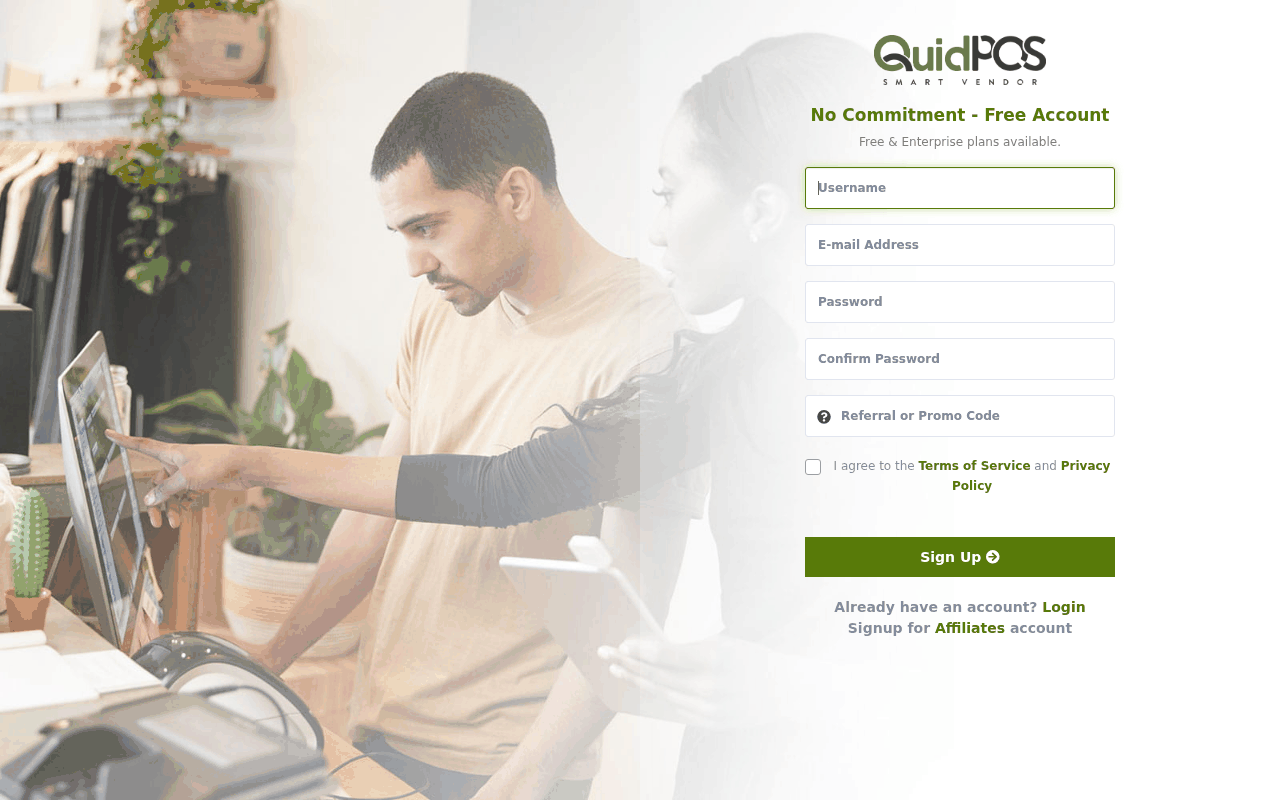
If the page says new sign-ups are closed, we are not taking new accounts on the website at the moment. Write to us and we will set one up for you.
The first screen after signing up
Quid asks four quick questions about your business:
- Business Name: the name that will print on receipts and documents.
- Country
- Native Currency: the money you price and sell in, for example PHP, MXN or USD.
- Time Zone: so that dates and times on receipts are right.
Click Next when all four are filled in.
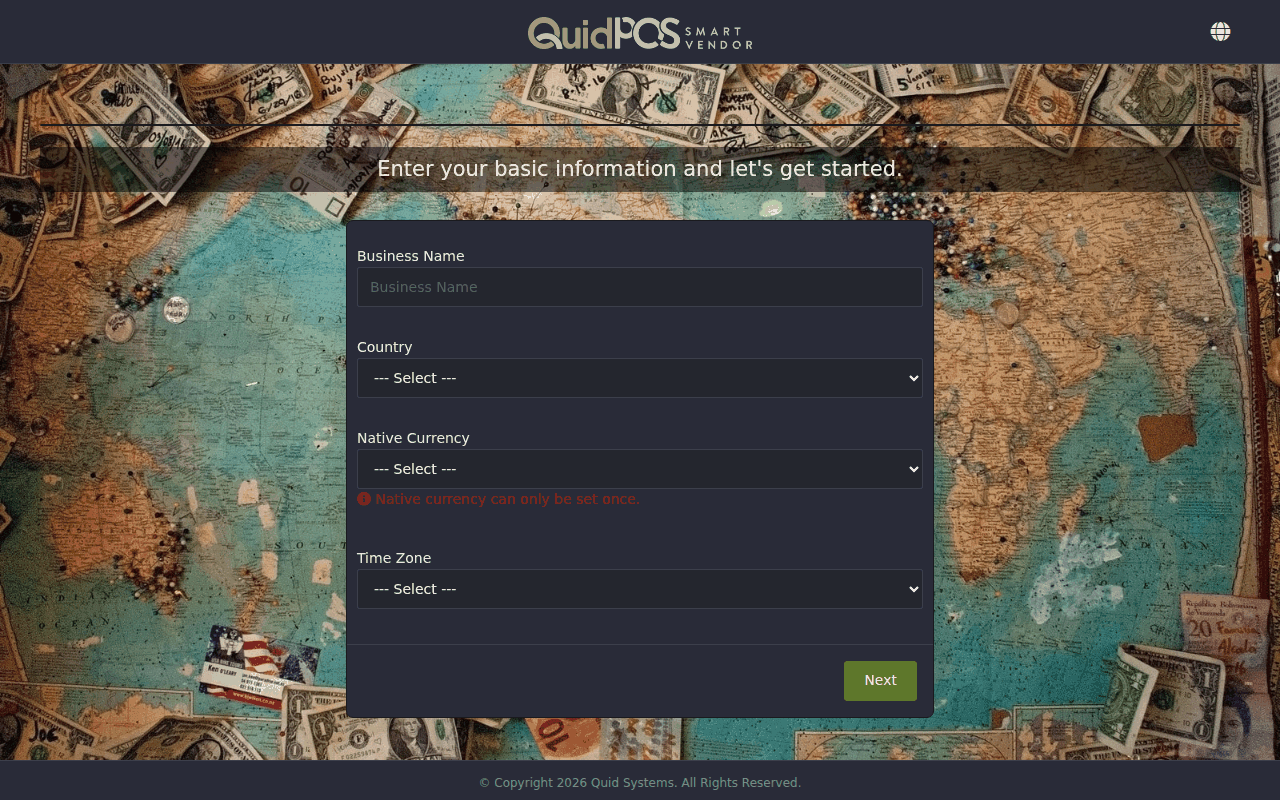
The native currency can only be chosen once. Check it twice before you click Next. If you picked the wrong one, contact us before you start selling.
Confirm your email address
Quid sends you an email with a link. Open the email and click the link. Until you do, a reminder stays at the top of the screen.
- No email after a few minutes? Look in your Spam or Junk folder.
- Still nothing? Click Resend Verification Email in the reminder.
Log in next time
- Go to app.quidpos.com/login.
- Type your username and your password.
- Click Login.
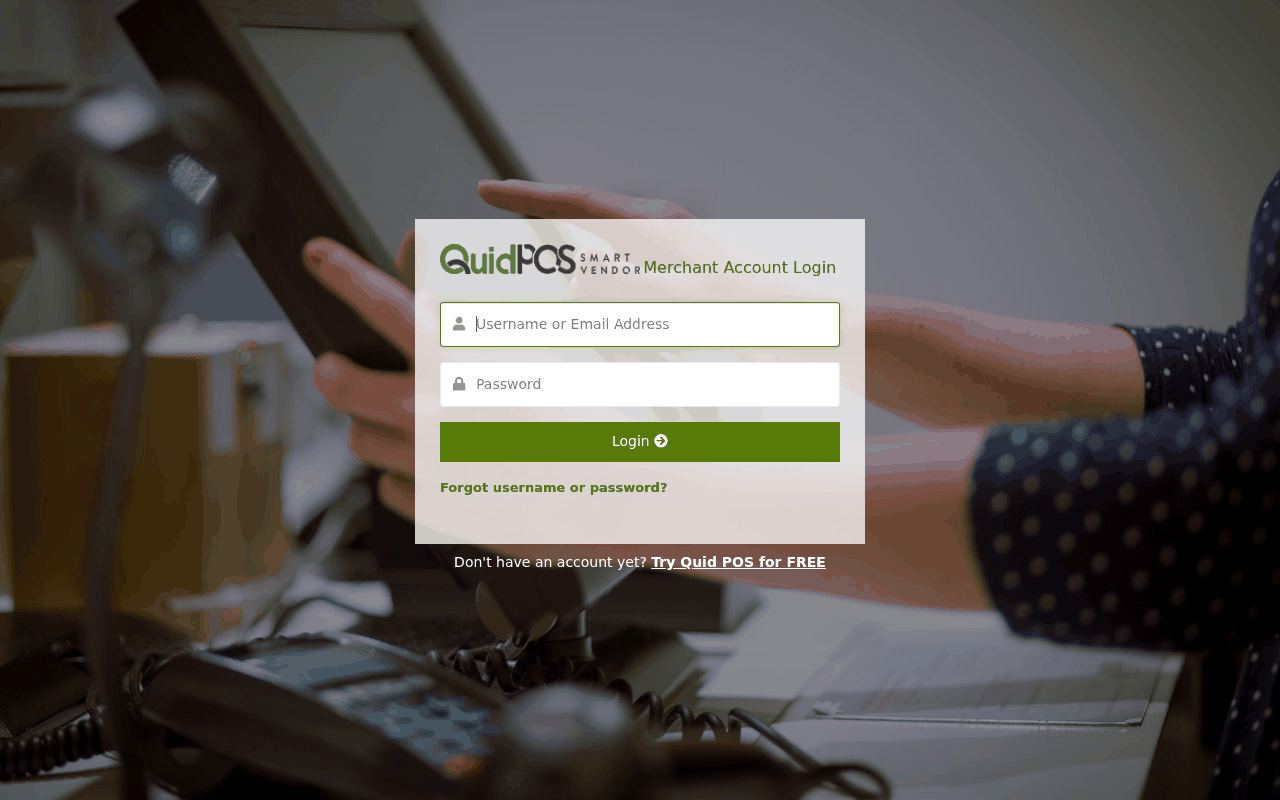
Add the log in page to your browser's bookmarks or favourites so you can open it with one click every morning.
Log out
Click the round picture in the top right corner, then Logout. Always log out on a computer that other people use.
I forgot my password. What do I do?
I am a staff member, not the owner. How do I log in?
Staff log in a slightly different way. See Log in as a team member.
Can two people use the same account at the same time?
Yes, but it is better to give each person their own login so you can see who did what. See Give a staff member their own login.