
Add an item to sell
Put a product or service into Quid with its price, its cost and how many you have.
Before you start
Create at least one Type to put the item in. See Organise your items into groups (Types and Categories).
The short version
- Go to .
- Type the Item Name.
- Choose its Type (and Category).
- Type the Cost (what you pay for it) and Price 1 (what you sell it for).
- Type the Quantity you have now.
- Click Create Item.
The item is now on your register, ready to sell.
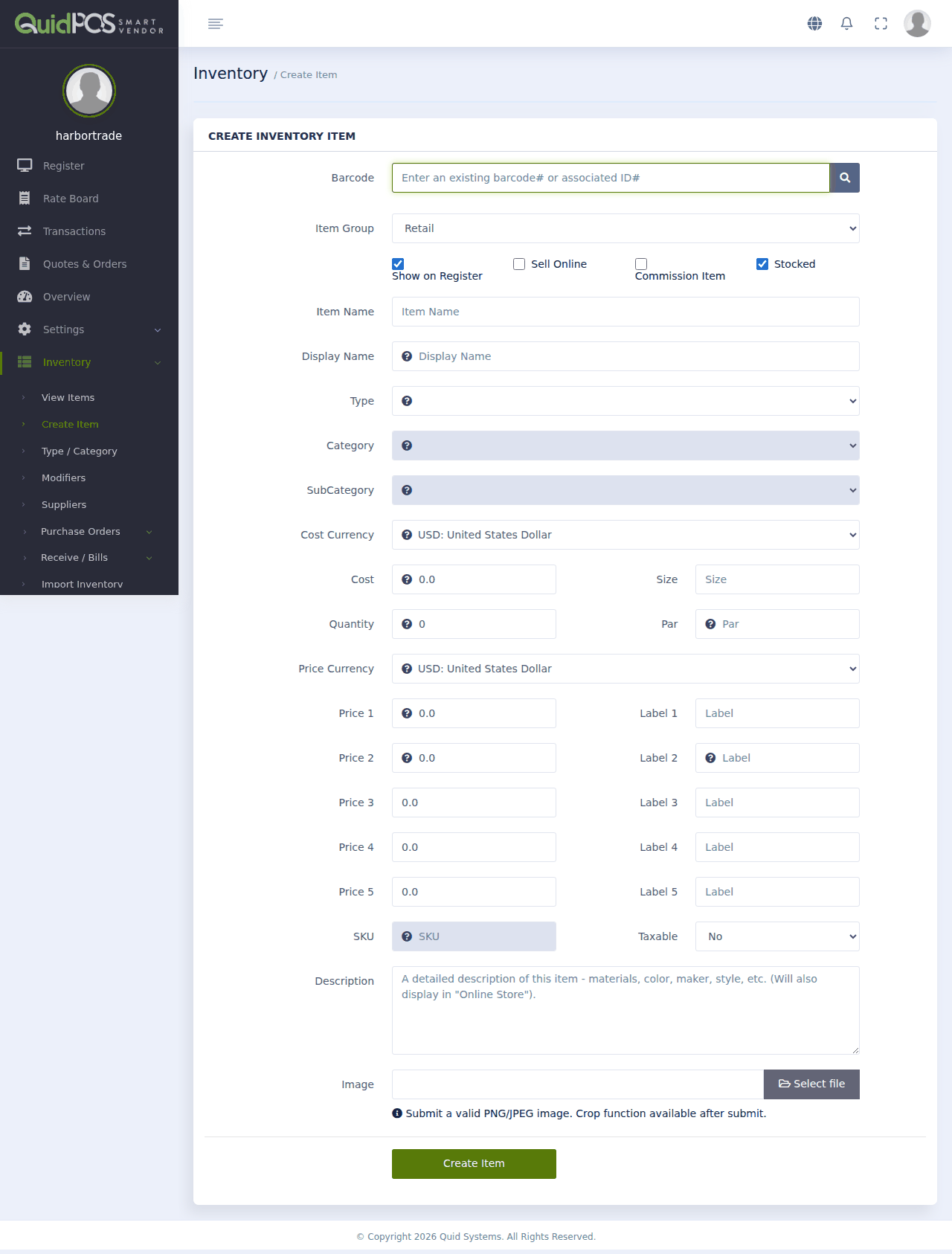 12345678
Every box explained
- Barcode. If the product has a barcode and you have a scanner, click in this box and scan it. Otherwise leave it empty.
- Item Group. Choose Retail for a physical product, or Service for work you do (delivery, installation, a haircut).
Under it are four tick boxes:
- Show on Register: leave ticked, or the item will not appear on the selling screen.
- Sell Online: tick only if you use the web store.
- Commission Item: tick only if you pay commission on it.
- Stocked: leave ticked for anything you count. Quid then keeps the quantity up to date and warns you when it runs low.
- Item Name. The full name, as you would write it on an invoice: "Copper cable 2.5 mm, 100 m roll".
Display Name is a short version for the register button and the receipt: "Cable 2.5mm 100m". Keep it under about 20 letters.
- Type, Category, SubCategory. The group the item belongs to.
- Cost. What you pay your supplier for one. Quid uses this to work out your profit. Do not leave it at zero, or your profit reports will be wrong.
- Quantity. How many you have right now. Par is the low-stock level: when the quantity drops to this number, Quid flags the item so you know to reorder.
Size is free text for things like "500 ml" or "Large".
- Price 1. Your normal selling price. The Label beside it is a name for that price, such as "Counter". Prices 2 to 5 are optional extra prices, such as a trade price. See Discounts and special prices.
- SKU and Taxable. The SKU is the item's number; Quid fills it in for you when you save. Set Taxable to Yes if sales tax should be added to this item.
Further down:
- Description. Extra detail. It also shows in your web store if you have one.
- Image. A photo of the item (PNG or JPEG). You can crop it after saving.
Give each colour and size its own item ("T-shirt blue M", "T-shirt blue L"). Then you always know exactly which ones you have left.
After saving
Quid shows the finished item with its new SKU number. From this page you can add more pictures, link the supplier you buy it from, print a shelf label, or click Create Duplicate to make a similar item quickly.
I have hundreds of items. Do I have to type them all?
No. Put them in a spreadsheet and load them in one go. See Load items, customers or stock from a spreadsheet.
What if I do not know my cost?
Type your best estimate now and correct it later. When you record deliveries, Quid keeps the cost up to date for you. See Cost, price and profit: how Quid works them out.
The cost and price are in different currencies.
Use Cost Currency and Price Currency. For example, you may buy in US dollars and sell in pesos. Quid converts the cost for your profit reports.
Do I have to use barcodes?
No. Barcodes only make selling faster. You can always find an item by name or by tapping its button.