
Find a past sale
Look up any sale by date, see what was sold and how it was paid, and print it again.
Where to find it Open this screen in Quid POS
- Click in the menu.
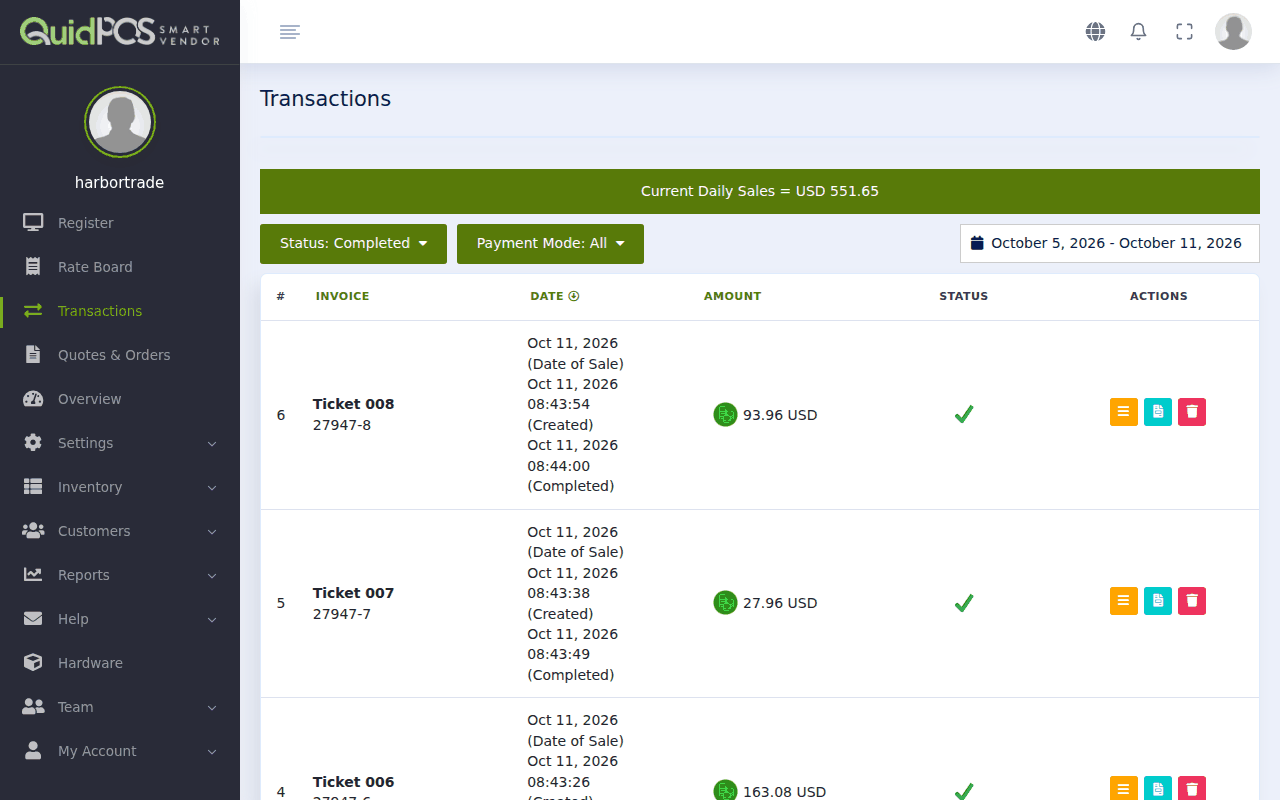
- The list shows completed sales for the last seven days, newest first.
 1234
1234- Status. Completed, Cancelled, Pending, Open, Quotes or Orders.
- Payment Mode. Show only cash sales, only card sales, and so on.
- Dates. Click to choose Today, Last 7 Days, This Month, or any range you like.
- Actions. What you can do with each sale.
At the top, Current Daily Sales is your total for today so far.
What you can do with a sale
At the end of each row are small coloured buttons. Rest your mouse on a button (or press and hold on a tablet) to see its name.
| Button | What it does |
|---|---|
| Details | Opens the full sale: every item, every payment, who rang it up and when. |
| Receipt | Shows the receipt on screen. |
| Print Receipt | Prints it again. |
| Share by Email | Emails the receipt to any address. |
| Void | Cancels the sale. See Cancel a sale or give a refund. |
Find one customer's purchases
Open the customer from instead. Their page lists everything they bought. See See what a customer has bought.
What the status words mean
| Status | Meaning |
|---|---|
| Completed | Paid and finished. |
| Open | Still being rung up on the register. |
| Pending | Waiting for a payment to arrive. |
| Cancelled | Voided. |
Tip
NextTake a deposit or a part payment →The number in the Invoice column (for example 27947-8) is unique to each sale. If a customer calls about a receipt, ask them to read that number to you.
Did this answer your question? If not, email us and tell us what you were trying to do. We read every message.