
A tour of the register screen
Every button on the selling screen, explained with a numbered picture.
Where to find it Open this screen in Quid POS
The register is where you sell. It has two halves: things to sell on the left and the customer's ticket on the right.
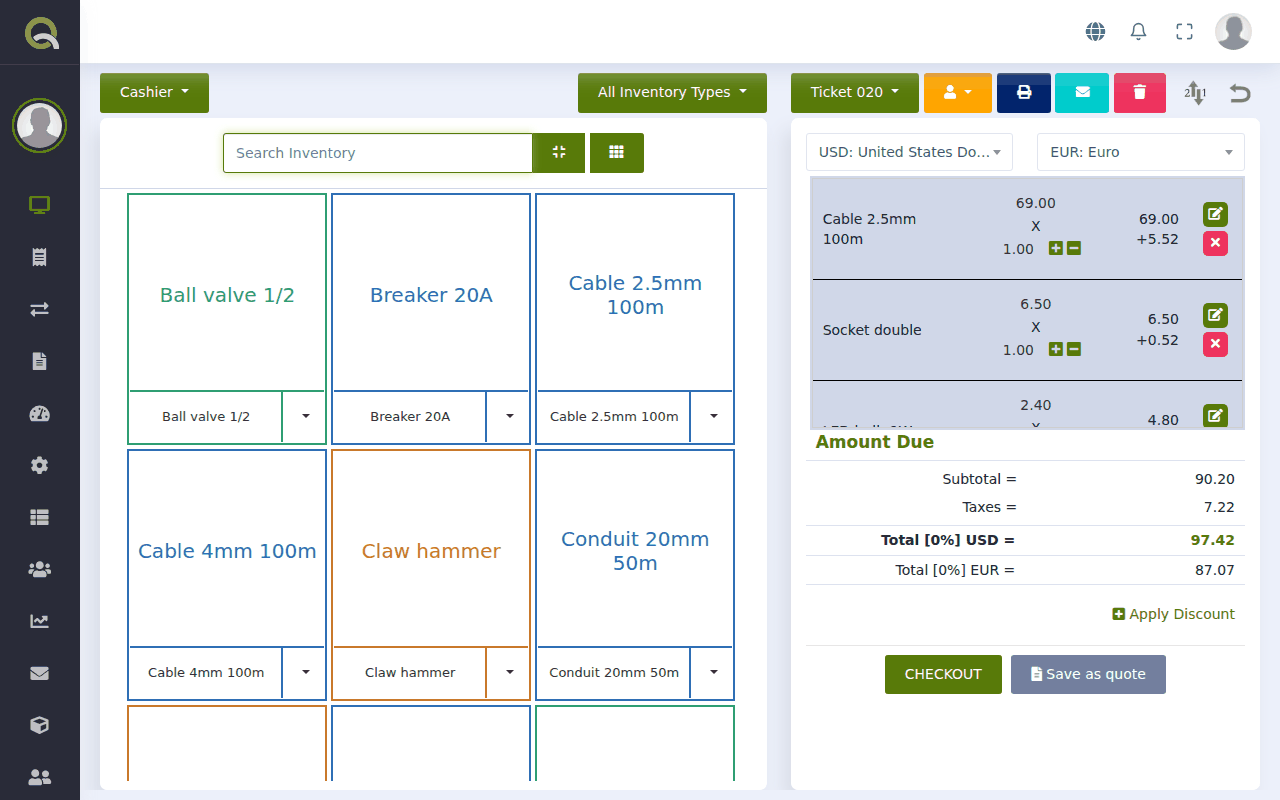 1234567891011
- Layout button. Switches between the two layouts described below.
- Search Inventory. Type part of an item's name or its number to find it. If you have a barcode scanner, click here first and then scan.
- Smaller view and number pad. The first small button makes the item buttons smaller so more fit on the screen. The second shows a number pad for typing an amount.
- All Inventory Types. Show only one group of items, for example only "Plumbing".
- Item buttons. One button for each thing you sell. Click a button to add that item to the ticket. The small arrow beside it lets you pick a different price, such as a trade price.
- Ticket button. Shows which ticket you are working on. Click it to start another ticket or go back to one you left open. See Serve several customers at once (open tickets).
- Person button. Attach a customer (or a referrer) to this sale. See Put a customer's name on a sale.
- Printer, envelope and bin. Print a receipt, email an invoice, or delete this ticket.
- The ticket. Each line is one item: its price, how many, and the line total. Use the small green plus and minus to change how many. See Change the quantity or price of an item on the ticket.
- Amount Due. The subtotal, the tax, and the total to pay. If you show a second currency, the total in that currency is underneath.
- Checkout and Save as quote. CHECKOUT takes payment. Save as quote keeps the ticket as a price offer instead of a sale. See Give a customer a quote.
Two layouts: Cashier and Dashboard
Click the button at the very top left (it says Cashier or Dashboard) to change layout.
- Cashier shows large item buttons. Best for touch screens and shops with a small range.
- Dashboard shows three columns: a number pad and a compact item list, the ticket, and the checkout. Best for a computer with a mouse and keyboard, and for long item lists.
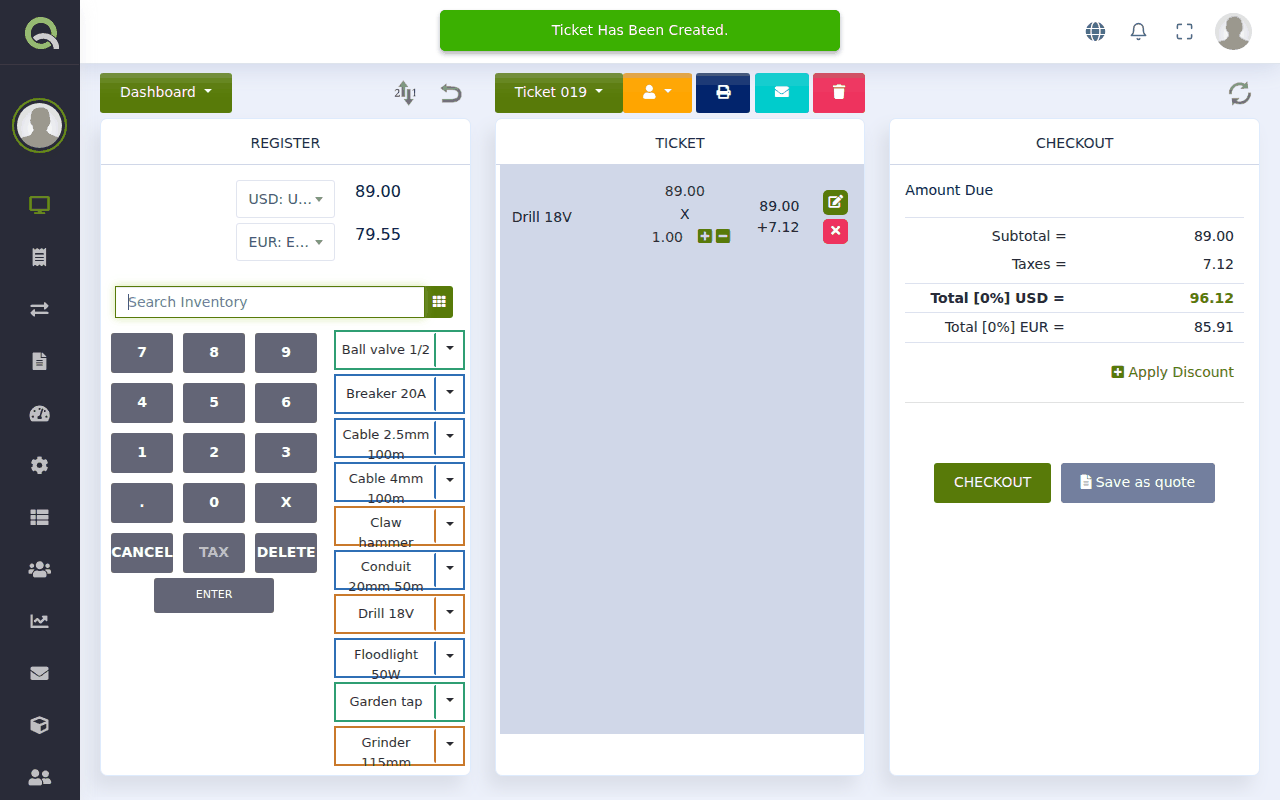
Both layouts do exactly the same job. Use whichever you find easier.
Selling something that is not in your item list
Use the number pad (always visible in the Dashboard layout; in the Cashier layout click the small number-pad button beside the search box). Type an amount and press ENTER. Quid adds a line for that amount. Press TAX first if tax should be added to it. This is handy for a one-off charge, but for anything you sell regularly it is better to add a proper item, so it shows in your reports and stock.
NextMake a sale →Did this answer your question? If not, email us and tell us what you were trying to do. We read every message.