
Take payment: cash, card, or a mix
How to record how the customer paid, give the right change, and split a bill across two ways of paying.
After you click CHECKOUT, the checkout panel asks two things: how much the customer gave you and in what form.
Cash, exact amount
Leave "Amount Received" empty and click Complete. Quid records the full total as cash.
Cash, and you need to give change
- Type the amount the customer handed you in Amount Received. Remember the box fills from the right: type 10000 for 100.00.
- Read Change Due. Hand that amount back.
- Click Complete.
Card
Quid does not move money from the customer's card by itself. You take the card payment on your own card machine, and you tell Quid that this sale was paid by card, so your reports are right.
- First, switch card recording on, once. See Card payments.
- At checkout, open the drop-down list next to Amount Received and choose your card option.
- Take the payment on your card machine.
- When the machine says approved, click Complete in Quid.
If you use Stripe with Quid, the card can be charged from inside Quid. See Card payments.
Part cash, part card (split payment)
- Type the first amount, for example the cash part, and choose how it was paid.
- Click Complete. Quid records that part and shows what is still owed.
- Enter the next amount with the other way of paying, and click Complete again.
Each part payment appears as a small line at the top of the panel. If you make a mistake, click the red bin on that line to remove it and enter it again. When the amounts add up to the total, the sale is finished.
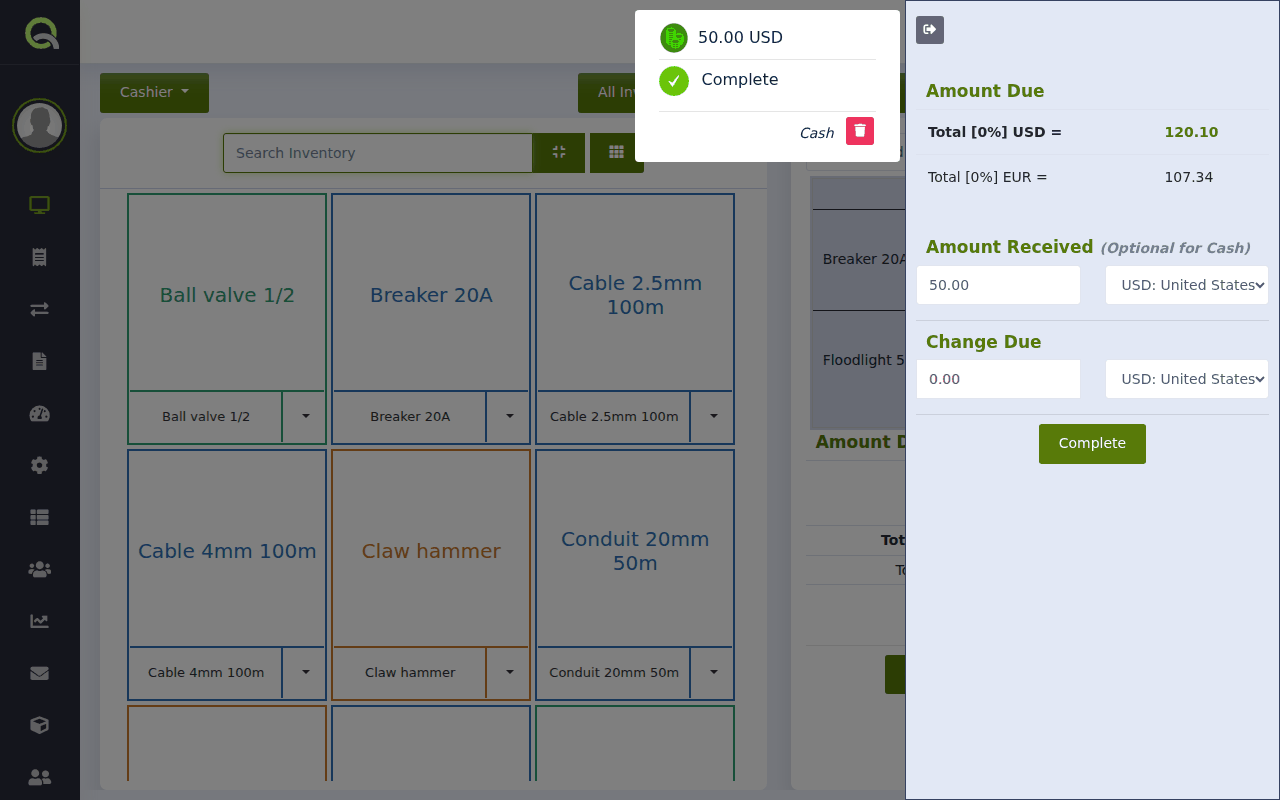
Cash in another currency
If you accept a second currency (for example US dollars in Mexico), choose that currency in the drop-down next to Amount Received and type what the customer gave you. Quid works out the value at today's rate and tells you the change. You can choose which currency to give the change in. Set this up in Currencies: accept more than one kind of money.
On account (pay later)
If the customer has an account with you, "On account" appears in the same drop-down list. See Sell on credit (customer accounts).
Adjustment
"Adjustment" in the list is for writing off a small difference, for example when you round the total down by a few cents. Type the amount, choose Adjustment, and type a short reason so that anyone reading the report later understands why.
I chose the wrong way of paying and already clicked Complete.
Cancel the sale and ring it up again. See Cancel a sale or give a refund.
Can I add a tip?
Yes, if tips are switched on in (Accept Tips). A tip box then appears at checkout. See Tax, receipt and register options (Preferences).