
Change the quantity or price of an item on the ticket
Sell 12 of something without clicking 12 times, change a price for one sale, or add a note to a line.
Each line on the ticket has small buttons.
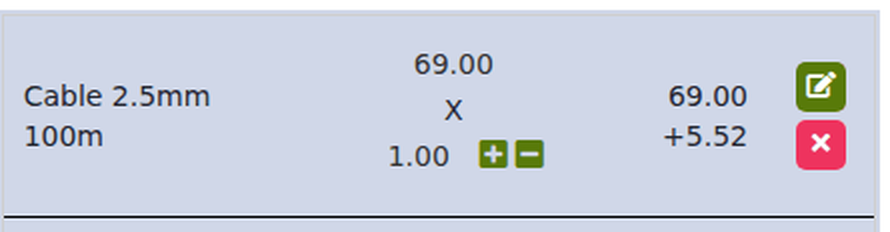 12345
12345- Price. Click to change the price for this sale only.
- Quantity. Click to type how many.
- Plus and minus. Add one or take one away.
- Edit (green pencil). Change everything about the line in one box.
- Remove (red ×). Take the line off the ticket.
Sell many of the same item
- Add the item once.
- Click the quantity number on its line (it says 1.00).
- Type the number you want, for example 12, and confirm.
You can also type part quantities such as 2.5, which is useful for goods sold by the metre or the kilo.
Change the price for this sale only
- Click the green pencil on the line.
- Type the new price in Price.
- Click Save.
The item's normal price in your item list does not change. Only this sale is affected.
If you often give the same special price to certain customers, set up a price level such as "Trade" instead of typing the price each time. See Discounts and special prices.
Add a note to a line
Click the green pencil and type in Item Label, for example "cut to 3 metres" or "blue". The note prints on the receipt under the item.
Choices and extras
If the item has choices set up (Quid calls them modifiers, for example a size or an extra), they appear in the same box when you click the pencil. See Choices and extras on an item (modifiers).
NextDiscounts and special prices →