
Give a customer a quote
Work out a price for a customer before they buy, save it, and send it as a PDF.
A quote is a written price offer. Nothing is sold, no stock moves and no money is taken. When the customer says yes, you turn the quote into a sale without typing it again.
Make the quote
- Click .
- Add the items the customer is asking about, exactly as if you were selling them. Change quantities and prices as needed. See Change the quantity or price of an item on the ticket.
- Attach the customer: click the orange person button and choose them. See Put a customer's name on a sale.
- Click Save as quote (next to CHECKOUT).
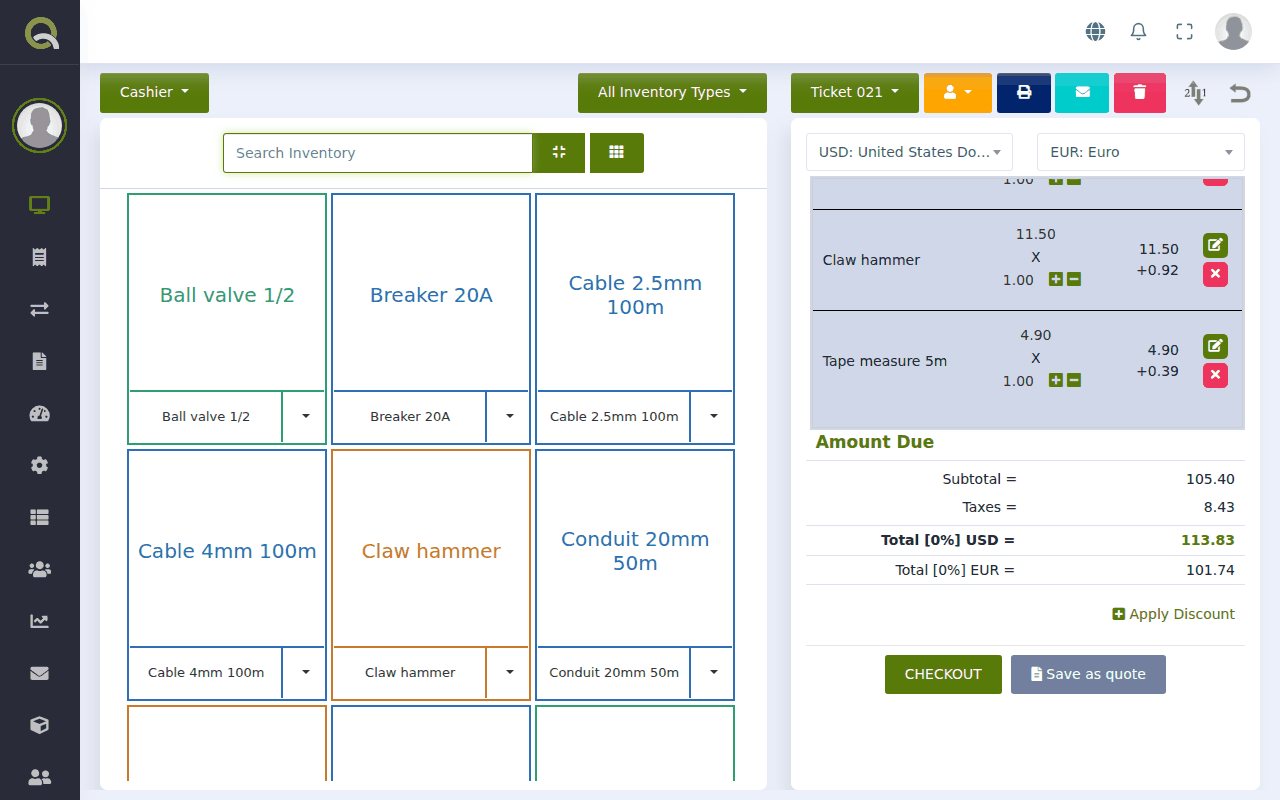
The ticket leaves the register and is stored on the Quotes & Orders page with a number such as "Quote 001".
Send it to the customer
- Go to .
- On the quote's row, click:
- PDF to open the quote as a document you can print or save, or
- WhatsApp to send the customer a link, or
- the quote's name to open it, then Email PDF to email it.
See Send a quote, invoice or statement as a PDF for what the document looks like and how to add your logo and terms.
When the customer says yes
Go to and choose one of these on the quote's row:
- Send to register: they are here and paying now. The quote opens on the register as a normal ticket. Click CHECKOUT.
- Convert to order: they have agreed, but will collect or pay later. The quote becomes an order. See Quotes and orders: follow a deal from offer to sale.
When the customer says no
Click Void on the quote's row. It moves to the Cancelled list. Nothing else changes.
Reuse a quote
Duplicate makes a copy as a new quote. Handy when a customer asks for "the same as last time", or when several customers want the same package.
Stock is not set aside for a quote. If the items are scarce and the customer is serious, convert the quote to an order and bring the goods to the back.