
Sales report: what you sold and what you earned
Every item sold in a period, with quantity, sales value, cost and profit.
Where to find it Open this screen in Quid POS
- Go to .
- Choose the dates at the top.
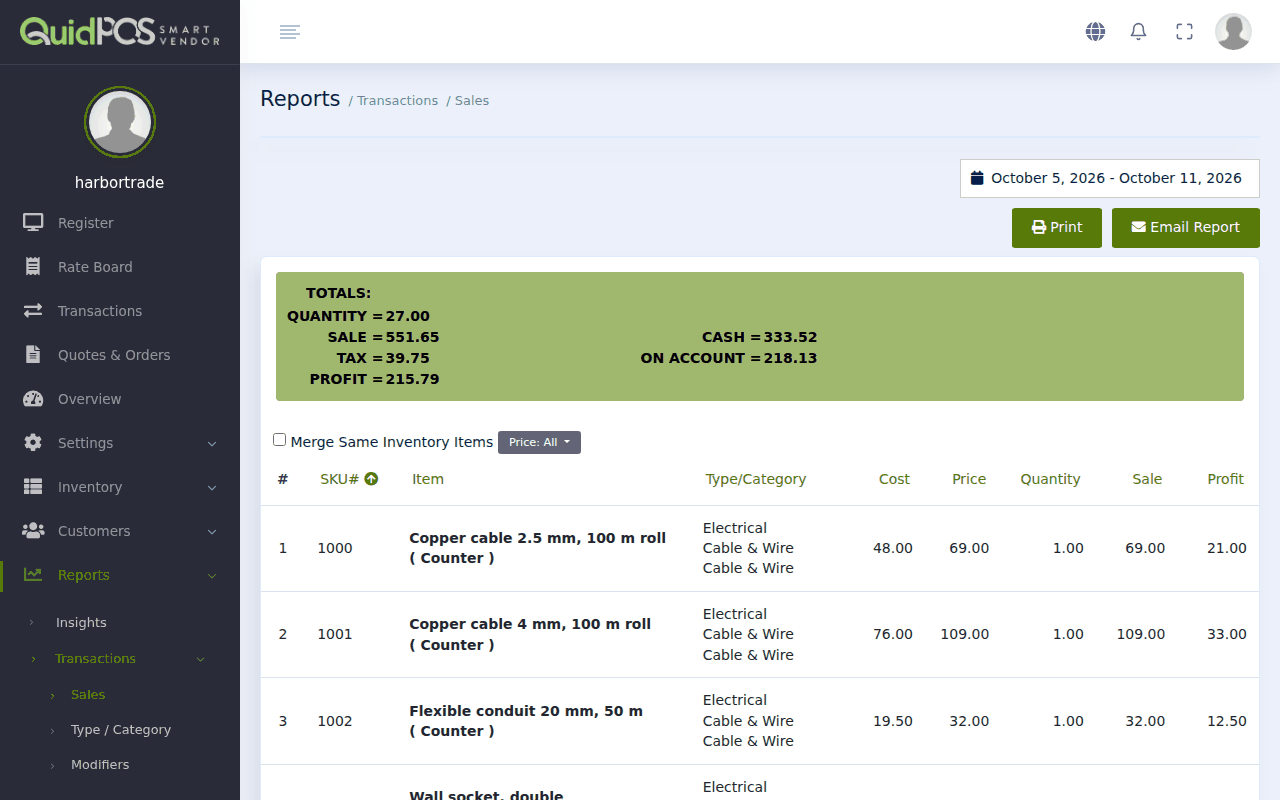
Reading the columns
| Column | Meaning |
|---|---|
| SKU# and Item | What was sold. |
| Type/Category | Its group. |
| Cost | What one cost you at the time of the sale. |
| Price | What one was sold for. |
| Quantity | How many were sold. |
| Sale | Money taken for this line (price × quantity). |
| Profit | Sale minus cost. |
At the bottom are the totals: Total Quantity, Total Sale and Total Profit.
Useful controls
- Summary / 24 hours / a single hour. The first drop-down lets you see a whole day, or just one hour of it. Good for finding your busy times.
- Merge Same Inventory Items. Tick this to get one line per item with the total sold, instead of one line per sale.
- Price. Show only sales made at one price level, for example only "Trade" sales. See Discounts and special prices.
- Print and Email Report. See Which report answers which question?.
Tip
For a quick end-of-day figure, choose Today and tick Merge Same Inventory Items. You get a short list of what sold and the day's total.
The profit looks wrong.
Profit depends on the cost stored on each item. See Cost, price and profit: how Quid works them out.
A sale is missing.
The report only counts completed sales. Check with the status set to Open or Pending.
Did this answer your question? If not, email us and tell us what you were trying to do. We read every message.