
Load items, customers or stock from a spreadsheet
Bring in a whole list at once from Excel instead of typing each line. You see a preview first, and you can undo.
If your information is already in a spreadsheet, you do not need to type it again. Quid can read an Excel file (.xlsx) or a .csv file.
Four things you can load
| Type | What it does |
|---|---|
| Items | Creates new items. You look them over and approve them on your item list. |
| Opening stock | Sets the quantity (and, if you include it, the unit cost) of items that already exist. |
| Customers | Creates customers. Can also set what each one already owes you. |
| Goods received | Records deliveries from suppliers, so stock and cost are updated. |
A file can have up to 5,000 rows and be up to 10 MB. For more, split it into several files.
Step by step
- Go to .
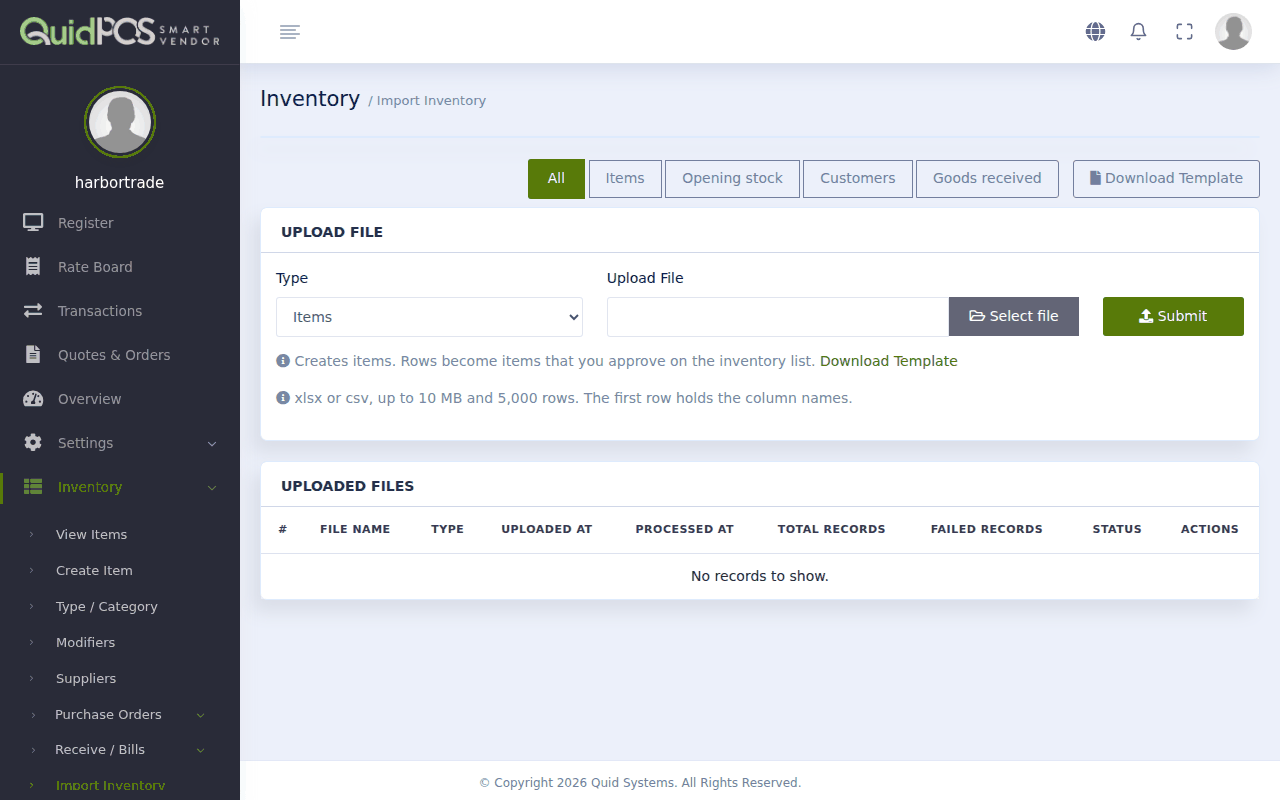
- In the Type box, choose what you are loading.
- Click Download Template. This gives you an empty spreadsheet with the right column names.
- Open the template and fill it in: one row per item (or customer). The first row must stay as the column names. Save the file.
You can also use your own spreadsheet as it is; you will match the columns in step 7.
- Back in Quid, click Select file and choose your file.
- Click Submit.
- Match the columns. Quid shows each column of your file and its best guess at what it holds (name, price, quantity…). Correct any that are wrong.
- Look at the preview. Quid shows what it will do with each row, before doing anything:
- Ready to import: fine.
- Skipped or Error: Quid says why, for example "Not a number" or "Item not found". These rows are left out.
- If rows that matter have errors, fix them in your spreadsheet and upload it again. Nothing has been saved yet.
- When the preview looks right, click Import.
Made a mistake? Undo it
Every upload is listed at the bottom of the Import page. Click Undo on a file to remove everything that file created or changed.
Tips for a clean import
- One thing per row. No blank rows, no totals at the bottom, no merged cells.
- Plain numbers. Type 1250.50, not "$1,250.50".
- Try 5 rows first. Upload a tiny file, check the result, undo it, then do the full file.
- Items first, stock second. Create the items, then load the opening stock.
How Quid matches rows to what you already have
- Opening stock and goods received find an item by its barcode / SKU first, then by its exact name. If two items have the same name, use the barcode.
- Customers are matched by email, then by phone number. If a customer already exists, Quid only fills in boxes that were empty; it never overwrites what you have.
- Goods received: a supplier name that Quid does not know is created as a new supplier.
Customers with a balance
In the customer file, the Opening balance column is what the customer owes you today. Filling it in switches on that customer's account. See Sell on credit (customer accounts).
Which column names does Quid understand?
Download the template for the type you chose. It lists every column, with a star on the required ones.
My file is in Google Sheets or Numbers.
Use File, then Download (or Export), and choose Excel (.xlsx) or CSV.