
Change, copy or remove an item
Correct a price or name, make a similar item quickly, or take an item off sale.
Find the item
- Go to .
- Type part of the name or number in the Search box above the list, or use the buttons along the top to show only Retail, Service, Stocked and so on.
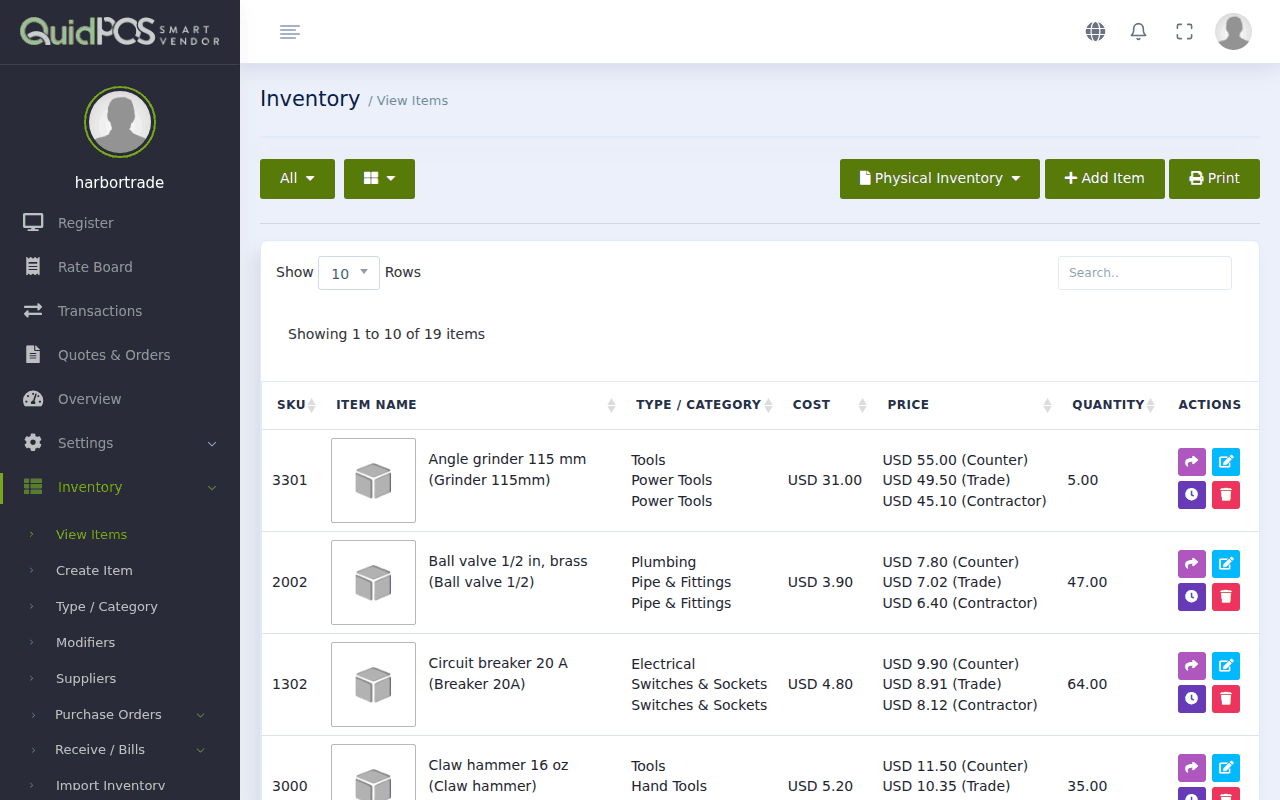
Above the list are tick boxes for the columns. Tick the ones you want to see, such as Barcode or Description.
Change an item
- Click the item's pencil (edit) button, or open the item and click Edit.
- Change what you need: name, price, cost, group, tax, picture.
- Save.
A new price applies from the next sale. Past sales keep the price they were sold at.
You cannot type a new quantity here. Stock quantities change through sales, deliveries and stock counts, so that there is always a record of why. To correct a count, see Count your stock and correct the numbers.
Make a similar item quickly
Open an item and click Create Duplicate. Quid opens a new item form with everything copied. Change the name and whatever is different, then save.
Stop selling an item
You have two choices:
- Hide it: edit the item and untick Show on Register. It disappears from the selling screen but stays in your list and reports. Best for seasonal items.
- Delete it: click the bin button. Past sales of the item stay in your reports.
See an item's history
Open the item and click History. You see every change to its quantity and cost: when, by whom and why.
Print the list
Click Print above the list for a printable copy of the items you are looking at.
NextCost, price and profit: how Quid works them out →