
The printer is not working
Blank paper, nothing printing, wrong size, cash drawer not opening: work through these checks.
Start at the top and stop when it works.
Nothing happens when I click the printer button
- Pop-ups are blocked. Quid opens the receipt in a small new window. Look at the right-hand end of your browser's address bar for a "blocked" icon. Click it and choose "Always allow pop-ups from app.quidpos.com". Then click the printer button again.
- The wrong printer is chosen. In the print window, check the printer name at the top.
Paper comes out blank
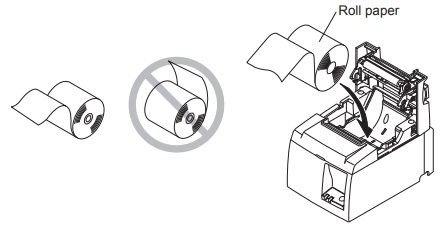
Thermal paper only prints on one side. The roll is upside down. Take it out, turn it over and put it back so that the paper feeds from the bottom of the roll. There is a small picture inside the paper cover.
The receipt is tiny on a big sheet, or cut off
In the print window, open "More settings" and set:
- Paper size: your roll width (80 mm or 58 mm).
- Margins: None.
- Scale: 100.
Your browser remembers this for next time.
A light on the printer is red or flashing
| Usual cause | Fix |
|---|---|
| The cover is open | Close the cover firmly until it clicks. |
| Out of paper, or paper jammed | Load a new roll. Remove any torn paper. |
| Paper nearly finished | Change the roll soon. |
| Print head too hot after a lot of printing | Wait a few minutes. |
Which lights show for which problem depends on the model. See the troubleshooting page for your model on Star Micronics support.
A network (LAN) printer has stopped responding
- Is it switched on, with the network cable plugged in at both ends?
- Is your tablet or computer on the same network as the printer? A tablet that has jumped to a guest Wi-Fi or to mobile data cannot see the printer.
- Has the printer's address changed? Switch it off, hold FEED, switch it on and let go when paper moves. After a minute the second slip shows the IP Address. Compare it with the address in . If it is different, set a fixed address: Set up a Star Micronics network printer.
- Type the printer's IP address into your browser's address bar. If the printer's own settings page opens, the network is fine and the problem is in the Quid printer settings. If it does not open, the problem is the network or the printer.
- In , open the printer and click Test Configuration.
Bluetooth printer keeps disconnecting (Android)
On Star Bluetooth printers, switch the Auto Connection setting off. It is meant for Apple devices and makes the connection unstable on Android. Star's utility app changes this setting.
Star mPOP will not connect
- Check the tablet's Bluetooth settings: is the mPOP paired?
- Install the mPOP Utility app from the app store. Select the mPOP, open its Bluetooth settings, set New pairing permission to OFF and tap Apply.
The cash drawer does not open
- Is it plugged into the printer? The drawer cable goes into the printer's drawer socket, not into the computer.
- Is it locked? Turn the key.
- Does the printer print? The drawer opens when the printer tells it to. Fix the printer first.
- Star mPOP: press and hold the round multi-function button on the front until the drawer opens. If that fails, there is a release lever underneath: lift the unit, find the hole near the back and slide the lever with a pen. Hold the drawer, as it springs open.
Still stuck?
Write to us with: the printer's make and model, how it is connected (USB, network cable, Bluetooth), what device you use Quid on, and what happens when you try to print.
NextQuid is slow, frozen or will not open →