
Order stock from a supplier (purchase orders)
Write down what you are ordering, send it to the supplier, and tick it off when it arrives.
A purchase order is your written order to a supplier: "please send me 20 of these and 50 of those". It is a plan. Your stock does not change until the goods arrive and you receive them.
Purchase orders are optional. If you just buy things and bring them back to the shop, skip straight to Receive a delivery (add stock).
Create a purchase order
- Go to .
- Type an Order No if you use your own numbering, or leave it for Quid to number.
- Pick the Purchase Order Date and the Supplier.
- Choose the Currency you will pay in, then continue.
- Add the lines. For each one:
- choose the Item,
- type the Quantity you are ordering,
- type the Unit Cost you expect to pay for one,
- click Save.
- If the supplier charges tax, type the Sales Tax (%).
- Check the Estimated Total and click Submit.
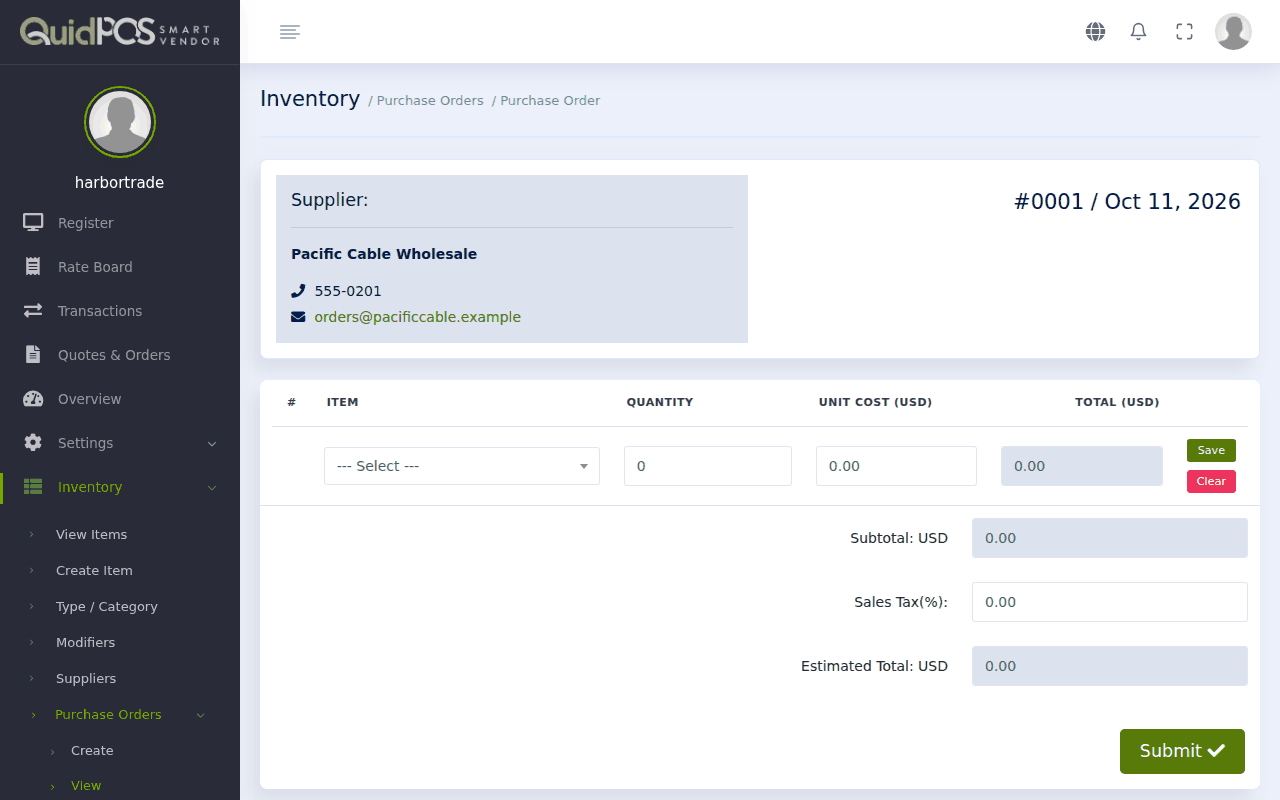
Ordering something you have never stocked? Choose Create New in the item list to add it without leaving the purchase order.
Send it to the supplier
Open the purchase order and click Print. You can choose whether to include your supplier's details and the amounts. Print it on paper, or choose "Save as PDF" in the print window and email the file.
When the goods arrive
Open the purchase order and click Receive goods. See Receive a delivery (add stock).
See all your purchase orders
lists them with their supplier, estimated total and status.
NextReceive a delivery (add stock) →